
|
|
|
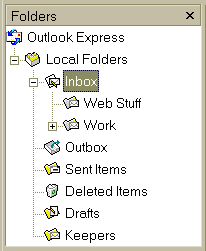 |
The Folders list is loaded with the following standard
folders: Inbox, Outbox, Sent Items, Deleted items and
Drafts. You can create as many folders or subfolders as needed. For example, if you would want a place to keep important emails, such as confirmation of user names and passwords, you might consider creating a folder call 'Keepers' and store those important emails. If you take a look at our example, we have also created 2 folders under the 'Inbox'. Notice, there is an expand icon beside the 'Work' folder. This would indicate there are still more folders under that category. |
| The Inbox is where your emails come into your computer.
You can have as many incoming emails as you choose.
You know when new emails arrive by the inbox icon becoming boded and the unread messages are shown blue and in parenthesis. Once you have read the message, or have an unread messaged selected for more than 5 seconds, the message will be consider read and the number of unread messages will be reduced by one. |
|
| The Outbox is where your computer temporarily stores outgoing messages. Once successfully sent, the messages are automatically moved to the Sent Items folder. | |
| The Sent items folder lists all the emails you have sent. Again, there is no real limit as to how many emails you choose to store. | |
| Deleted items stores any emails you have deleted. You
can clean out this folder at any time. You can also retrieve deleted
items and move them to any other folder in the program.
You can choose to delete one email at a time, or you can choose all or some of the messages and delete them in bulk. Since you have to confirm each deletion in Deleted items, it might be an idea to practice selecting files for this operation. |
|
| Any unfinished emails will be stored in the Drafts
folder. You can write emails over many days and send only when you have
completed them.
When you are ready to continue writing, just choose the Drafts folder and then double-click on the email. When you are finally ready to send it, just choose the send button. |
|
| If you want to create a folder, first, decide where you
are going to put it. If you choose the folder in the folder list,
you won't have to tell OE where to put it.
Either point to: Regardless of which you method you use, the 'Create folder' dialog box will open and request the name of your new folder. If you chose the folder first, it will be selected in the dialog box, otherwise, choose the location from the available choices. Click on the OK button. Abracadabra, you have a brand new folder. |

Once you have created new folders and you want to move
individual emails to those folder, just point to the desired email, hold
down your left mouse button and then drag the email over to the folder
you want to file them in. You should let go of the left mouse
button when the folder you are targeting becomes highlighted.  |