| There are a number of different pages to this program which
are discussed following. You can get to the Display properties in a
variety of ways. You can, either,
Choose the Start menu, then settings, follow by Control Panel. Double
click on Display.
or Double click on My Computer, then Control Panel. Double
click on Display.
or Point to any blank area of the screen, right mouse button click and
choose Properties.
|
| Set up your Desktop wallpaper/pattern
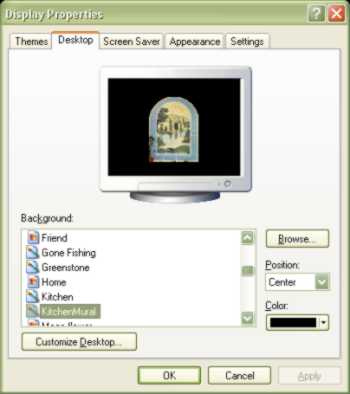
The pattern is the area of the screen that surrounds a wallpaper
picture. If you take a look at the diagram on the right, notice there is a
black border around the picture. Instead of a solid black border, we can
choose to set a pattern to this area of the screen.
|
|
In the control panel, double click on the Desktop icon.
Or, from your desktop, right mouse button click and
choose Properties
Choose the Pattern button, then from the available list.
Note: This option is not visible if a wallpaper is set to Tile or takes
up the full size of the screen. |
Windows XP visual
Slide your mouse over the image to see the Windows 98 visual
|
The wallpaper is a picture or pattern that is visible when programs
are minimized. You can choose from a variety supplied by Windows or download
from the internet, or scan pictures of your family, (provided you have
a scanner, of course.)
- Choose from the Wallpaper list.
-
Select either Tile or Center.
Tile will reproduce the drawing so that it will fill your screen.
Center will place one copy of the picture in the middle of your
screen.
Click on OK or tap Enter to accept your choices
|
Change the Desktop's color scheme
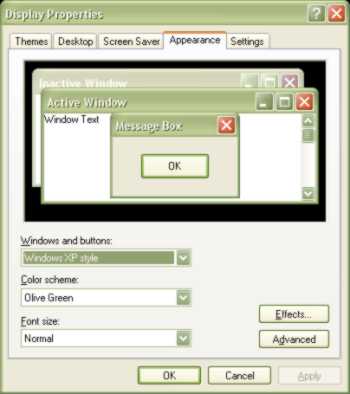
Windows opens using the Windows default color scheme. (Grays and Royal
Blue)
If you want to change it, use the Color program.
|
|
Choose the Display icon to open the color dialog box
Select the Appearance tab
Point to the arrow attached to the Scheme field to open the color
list.
Select a color scheme, (notice the sample will revert to that scheme)
Click on OK or tap Enter to accept your changes, or modify
the color even more by following the next instructions.
|
Windows XP visual
Slide your mouse over the image to see the Windows 98 visual
|
Modify a color scheme
Should you wish to modify the chosen color scheme or create your own,
use the following procedure.
-
Point to the color you dislike on the sample provided and click the left
mouse button. Notice the name will change in the Item field as you
make your selection
-
Select a color from the color drop down list or choose Other to create
your own.
-
When finished, click on the Save As button. Give your scheme a name.
-
Click on OK or tap Enter to accept your changes
|
Modify Display Fonts
Should you want the displayed fonts larger, smaller, bold, etc.
-
Select the font in the Sample area.
-
Select a new font, size, color and appearance.
-
When finished, click on the Save As button. Name you scheme.
-
Click on OK or tap Enter to accept your changes
|
Select a Screen saver
-
Double click on the Desktop icon, Click on the Screen Saver
tab
-
Choose a screen saver
-
Click the Preview button to view your choice
-
Every screen saver has different options that can be changed. Click on
Setup
to change the default settings.
-
Set the time interval for the screen saver
-
Assign a password. This option will prevent the screen saver to be canceled
unless the correct password is given. If you assign a password
DO NOT FORGET IT. If you do, you will most probably have to reload
Windows.
-
Click on OK or tap Enter to accept your choices
|
 ER Computers