|
|
|---|
|
|
|
 ER Computers
 |
||||||||||||||||||||||||||||||||||||
| Basics | ||||||||||||||||||||||||||||||||||||
|
||||||||||||||||||||||||||||||||||||
| Common Problems | ||||||||||||||||||||||||||||||||||||
|
||||||||||||||||||||||||||||||||||||
| Software Help | ||||||||||||||||||||||||||||||||||||
|
|
|
|
This program is used to change
your computer's settings,
such as colors, modem information,
etc.
Date/Time modify the system's
clock and calendar settings.
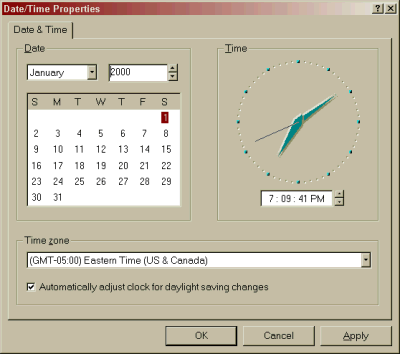
| Change the System's date or time
Occasionally your system may loose or gain time. Following is the procedure to correct the situation. If the problem persists, it may be an indication that you internal battery needs to be changed. |
 |
||||||
Of course, as with most things on computers, there
is several ways to get to the necessary program. You can:
|
|||||||
|
Select the section (use either the mouse or keyboard convention) of the date field (day, month, year) you want to change.
Type the new Time value Click on OK or tap Enter to accept your changes |
|||||||
 |
 |
 |

|
Have a problem and can't
find the answer on our site?
Click Here To
Contact Us. |
|
Want to know what people say about us? Visit our Comments page. |
|
Let us know what you think about our site or want
to offer any suggestions. |
|
Thanks for visiting |
||
 |
|
 |
|
|
 |
|
|
|
 |
|
|
|
||
|
These links will lead you into our
framed website. It is best viewed at a screen
resolution of 1024 x 768
dpi, however, 800 x 600 dpi will
also work. |
||





 menu
menu