|
|
|---|
|
|
|
 ER Computers
 |
||||||||||||||||||||||||||||||||||||
| Basics | ||||||||||||||||||||||||||||||||||||
|
||||||||||||||||||||||||||||||||||||
| Common Problems | ||||||||||||||||||||||||||||||||||||
|
||||||||||||||||||||||||||||||||||||
| Software Help | ||||||||||||||||||||||||||||||||||||
|
|
|
|
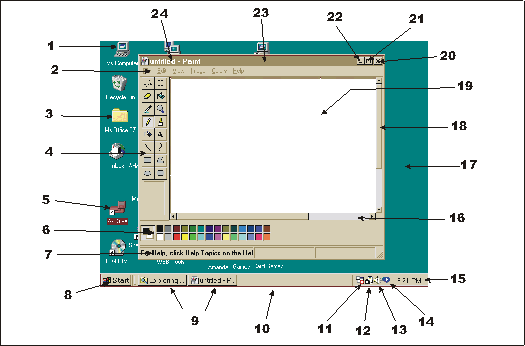
| Windows will automatically start after the computer completes it's startup procedure. The speed at which this procedure takes is dependent on how many different devices and programs are set to run automatically in your Windows environment. |

| 1 | Program Icon |  |
All programs can be identified by their icon or pictorial representations. It should be noted, all program icons can be changed to something more to the users liking. |
| 2 | Menu Bar |  |
Most programs have a multitude of tools you can utilize. The more powerful a program is the more menu options you have to choose from.. The above example is a windows based program called "MS-Paint" . |
| 3 | Folder | |
Folders are similar to a file drawer within a filing
cabinet concept.
|
| 4 | Toolbar | |
Toolbars allow a user access to the most common computer tasks, (things like opening or closing files, copying and pasting text, etc.). They are usually located at the top of a program screen, but can be moved to other locations in a program. The example used, is again, from the MS-Paint program. |
| 5 | Selected program | |
Once you have chosen a program (point to and single click the left mouse button) the computer will give you a visual cue, in the examples case the program icon and name have been highlighted. |
| 6 | Color Palette | |
Another type of toolbar. As we are using Paint as our example of a program. this toolbar offers the user to change color of their working tool. |
| 7 | Status Bar | |
Most programs have status bars available to the user. These bars offers the user information about the program they are working in. |
| 8 | Start Button | |
The start and finish to your windows experience. If you have a program on your computer that has not had a shortcut created on your desktop, you will usually find it on under the programs folder on you Start menu. When you have ended you windows session, you must return to this button to shut down windows properly. You should never just turn off the power to windows. (Click here, for more information) |
| 9 | Open program
buttons |
|
A program that has been activated is represented by a button appearing on the task bar. In the above example there are two programs open. |
| 10 | Task bar | |
This bar is designed to show you what programs are open on the system and to provide easy access to them. (Click here for more information) |
| 11 | System Agent | |
A windows based scheduling program that allows you to set specific times for programs to run. As an example, you might want be to set the defrag program to run every Friday night at 10:00 pm |
| 12 | Anti virus software | |
Software of this type is placed in the windows startup folders to ensure viruses are detected immediately. |
| 13 | Volume control | |
Designed to adjust the volume control over the entire system or for individual components such as wave files, microphone, cd sounds, etc. |
| 14 | Real player | |
A program designed to start automatically when needed for sound and video files. |
| 15 | Date/Time | |
If you system date or time is in-accurate, double click on this icon to adjust the settings. |
| 16 | Horizontal Scroll bar | |
Scroll bar, designed to automatically appear when the width of the information available is greater then the visible area of the screen. (Click here, for more info on this tool) |
| 17 | Desktop | |
The main part of windows 98. This space can be customized to suit the individual needs of every user, such as colors, font sizes, background etc. |
| 18 | Vertical Scroll bar | |
Scroll bar, designed to automatically kick in when the length of information available is greater then the visible area of the screen. |
| 19 | Work area | |
All programs must have areas where we visualize our work. The area is usually represented using a white background, the user can specify some other color |
| 20 | Exit button | |
When you are finished with a program it should be exited. All window's based programming uses this design for exiting. (Click here for more information) |
| 21 | Maximize/Restore | |
This button actually has two visuals, Maximize  and Restore
  . The
example provided, shows the button in it's maximize state. If you
want your working program to take up the entire screen, click on this button
and the goal will be accomplished. You can also double click on Title
bar (#24) to maximize or restore. (Click
here for more information) . The
example provided, shows the button in it's maximize state. If you
want your working program to take up the entire screen, click on this button
and the goal will be accomplished. You can also double click on Title
bar (#24) to maximize or restore. (Click
here for more information) |
| 22 | Minimize | |
When you need a program out of the way for a few minutes, without actually closing it, this button will place it on the task bar until you need it again. (Click here for more information) |
| 23 | Paint Program | |
An example of an open program. (Click her for more information about Paint) |
| 24 | Title bar | |
All programs have title bars which just identify the program and shows you the name of the file you are working on. |
![[Top]](images/TopNew.gif)


|
Have a problem and can't
find the answer on our site?
Click Here To
Contact Us. |
|
Want to know what people say about us? Visit our Comments page. |
|
Let us know what you think about our site or want
to offer any suggestions. |
|
Thanks for visiting |
||
 |
|
 |
|
|
 |
|
|
|
 |
|
|
|
||
|
These links will lead you into our
framed website. It is best viewed at a screen
resolution of 1024 x 768
dpi, however, 800 x 600 dpi will
also work. |
||





 button (#8).
