|
|
|---|
|
|
|
 ER Computers
 |
||||||||||||||||||||||||||||||||||||
| Basics | ||||||||||||||||||||||||||||||||||||
|
||||||||||||||||||||||||||||||||||||
| Common Problems | ||||||||||||||||||||||||||||||||||||
|
||||||||||||||||||||||||||||||||||||
| Software Help | ||||||||||||||||||||||||||||||||||||
|
|
|
|
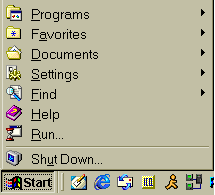
The  button
is the starting point of your Windows experience. This menu contains a
variety of special programs such as Shutting down your computer, accessing
programs that are not visible on your desktop, or an easy place to see
what documents have been opened. Each aspect is discussed following. button
is the starting point of your Windows experience. This menu contains a
variety of special programs such as Shutting down your computer, accessing
programs that are not visible on your desktop, or an easy place to see
what documents have been opened. Each aspect is discussed following.
When you point to The first thing we would like you to notice is the small right-pointing
triangles ( The second thing would be the underlined letters under each word in the
list. If your mouse crashes, you can use the keyboard to restart your
computer by first tapping the Start a PROGRAM |
|||||||||||||||||||||||||||||
 |
From the Start menu
1. Click on the button
2. Select Programs, a list of available programs will open 3. Select the program from the available program groups From the desktop
|
||||||||||||||||||||||||||||
|
|||||||||||||||||||||||||||||

| As mentioned previously, the taskbar can be moved to either side or top of the screen. To do this, point to any blank part of the taskbar. Hold down the left mouse button and drag the mouse indicator to where you want the taskbar positioned. It should be noted, that you will notice a box shadow when the mouse indicator is located approximately 80% away from its intended mark. |
| If you should point to the top of the taskbar, you will notice the
mouse indicator will turn into a sizing arrow. If you hold down the
left mouse button and drag your hand in an upward motion, the taskbar will
become taller and take up extra space on you screen.
To reverse the effect, point to the top of the newly sized taskbar. When the mouse indicator turns into a sizing arrow, hold down the left mouse button and drag down. Do not pull the indicator down completely to the bottom of the screen or it will disappear completely. |
|
|
| Regardless of what you want to do,
you must start a program to do anything. Always begin by asking yourself
one question. WHAT DO I WANT TO DO? When you answer
that question you will have given yourself a road map to your goal.
Another thing to understand is that, every operations is a sequence of steps. You miss a step, you won't achieve your goal. We have tried to lay out the steps as clearly as we could, we hope we did not make any mistakes. |
|
| From the desktop (A shortcut must be created for most programs) | From the Start menu |
|
|
| Keyboard
convention
Hold the <ALT> key and tap the underlined letter in menu option you want to access. When the list opens release the <ALT> key and tap only the underline letter of the option you want to access. Mouse convention Point at each word on the menu and list options with mouse and click on the desired word. |
Shortcut |
Toolbar
Button |
|
Hold 
Tap 
|
 |
| With your mouse, single
click on the button, choose Shut Down
When the Shutdown Windows dialog box appears, click on OK |
Return to the Window's desktop.
Hold
Tap
|
If you have a Window's keyboard, tap the  key, then tap the
  key to Shut Down. When the close box appears,
tap the Enter key
key to Shut Down. When the close box appears,
tap the Enter key
|
|
 |
 |

|
Have a problem and can't
find the answer on our site?
Click Here To
Contact Us. |
|
Want to know what people say about us? Visit our Comments page. |
|
Let us know what you think about our site or want
to offer any suggestions. |
|
Thanks for visiting |
||
 |
|
 |
|
|
 |
|
|
|
 |
|
|
|
||
|
These links will lead you into our
framed website. It is best viewed at a screen
resolution of 1024 x 768
dpi, however, 800 x 600 dpi will
also work. |
||





 ) beside Programs,
Favorites, Documents and Settings categories.
Whenever you see these symbols, you know there are lists attached to the
category.
) beside Programs,
Favorites, Documents and Settings categories.
Whenever you see these symbols, you know there are lists attached to the
category.
 .
.

