|
|
|---|
|
|
|
 ER Computers
 |
||||||||||||||||||||||||||||||||||||
| Basics | ||||||||||||||||||||||||||||||||||||
|
||||||||||||||||||||||||||||||||||||
| Common Problems | ||||||||||||||||||||||||||||||||||||
|
||||||||||||||||||||||||||||||||||||
| Software Help | ||||||||||||||||||||||||||||||||||||
|
|
|
|
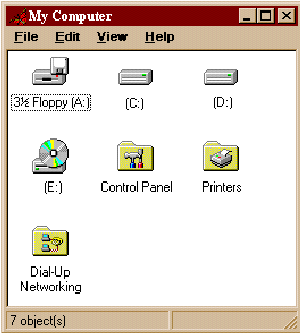
My Computer
| This program allows you access to the different drives that make up
your computer.
There are always at least two drives on any computer. The drive that is used to run small floppy diskettes is usually called the A drive. The main part of the computer where programs are stored is called the
C drive.
If you have a CD-ROM player, or, are part of a network, your system
would list more drives. This program also allows access to the Control
Panel (discussed later), load printer information and networking software
for the Internet
|
 |
| When you want to ensure a diskette is completely
blank, you must format it. Start by putting the diskette into the
floppy drive. If you take a look at the diskette, there usually is
an arrow on the upper left, showing you the correct way of inserting it.
Then;
|
|
| Single click only, do not
open the program. If you do go back to the My Computer program From the File menu, select Format. Set the criteria, (Erase or Thorough, etc.) Click on OK or tap Enter. |
You can also point to the 3½Floppy (A:) icon, right mouse button click and choose format from the pop up menu. |

Used to make copies of diskettes.
|
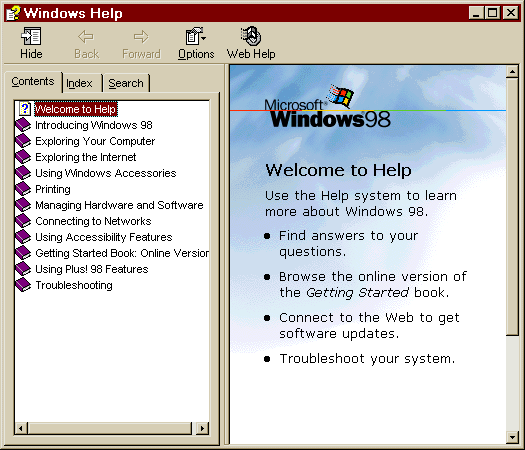
Access Help commands
Double click on the subject |
 |
It is often easier to follow the Help advice if you have the subject
printed. In such instances
|
Programs must be loaded on to your hard drive to be able to function.
The procedure is usually simple.
|

![[Top]](images/TopNew.gif)

|
Have a problem and can't
find the answer on our site?
Click Here To
Contact Us. |
|
Want to know what people say about us? Visit our Comments page. |
|
Let us know what you think about our site or want
to offer any suggestions. |
|
Thanks for visiting |
||
 |
|
 |
|
|
 |
|
|
|
 |
|
|
|
||
|
These links will lead you into our
framed website. It is best viewed at a screen
resolution of 1024 x 768
dpi, however, 800 x 600 dpi will
also work. |
||





