|
|
|
|
|
|
| Web site pages are usually easy
to print, but can be a little confusing. The first problem is that
you never know how many paper pages it will take.
The only indication you have is
the size of the location box in the scroll bar. The smaller the box,
the more information there is to print. So, if you see a miniscule box, we
would suggest you get a new package of paper. LOL
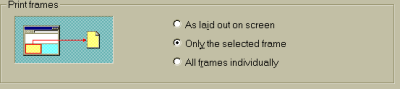
As many web sites have incorporated frames, (areas of your screen that are split into different parts, as with our site) you will need to remember 2 things. The Print button on the toolbar will use the default print settings (usually set to, Only the Selected Frame). A good portion of the time, you will end up with a blank sheet of paper. If you want to print a specific
frame, such as this one, point to any part of the frame, first, and
single click. Then click on the If you do would to print the entire page (which would include the navigation bars), use the Print feature found under the File menu option. When the dialog box opens, look at the Print frames portion of the box, point and click at the radio button beside the option As laid out on screen and then click on the OK button located at the bottom of the dialog box.
|
| Yes, you could print up this entire
site, however, it has not been laid out for print and you may end up with
some pretty funny looking pages.
We would recommend you get a lot of paper and a few ink cartridges. An alternative would be to purchase a set of our course notes. They are written in the same mood and contain a great deal more. If you would be interested in purchasing a set, please email us and let us know what subject you would be interested in. |


|
Have a problem and can't
find the answer on our site?
Click Here To
Contact Us. |
|
Want to know what people say about us? Visit our Comments page. |
|
Let us know what you think about our site or want
to offer any suggestions. |
|
Thanks for visiting |
||
 |
|
 |
|
|
 |
|
|
|
 |
|
|
|
||
|
These links will lead you into our
framed website. It is best viewed at a screen
resolution of 1024 x 768
dpi, however, 800 x 600 dpi will
also work. |
||



 button.