
|
WordPerfect |
|
|
|
|
Writing Tools
| What else would a writer consider as a tool in word process but a speller, thesaurus and grammar checker. The spelling feature is set to mark misspelled words with a squiggly red underline. Grammar errors are shown using green squiggle underlines. |
Topics
| Speller | Printing |
| Grammar checker | Dealing with multiple pages |
| Thesaurus | Sending a Fax |
| Use Speller to check your document for misspelled
words, duplicate words, and irregular capitalization.
To start the speller function, do one of the following
|
|||
|
|
|||
| By default the program is set to check
the entire document. If you only want part of the document
checked, choose the option from the
Check
menu. (lower right)
Check the Options menu items for additional checking methods. Items that are checked off are active. (above check option)
Choose the proper word from the list provided and click the Replace button. Words that are not found in the dictionary will be deemed spelling errors. If you want a word to be added to the supplementary dictionary (such as a street name, or postal code), click on the Add button. When the speller completes the document, click the Close button |
Use Thesaurus to display synonyms or antonyms of words.Place your cursor in the desired word, do one of the following
Click on OK or hit the Enter key |
| Use Grammatik to check your document for spelling,
grammar and punctuation errors and style flaws.
To start the Grammatik function, do one of the following
Check the Options menu items for additional
checking methods, in particular the Writing style option. Items that are
checked off are active
* If the suggestions are not applicable, click on the Skip button * If you cannot understand the terminology used, click on words that are shown in Green and underlined. When the Grammatik completes the document, click the Close button |
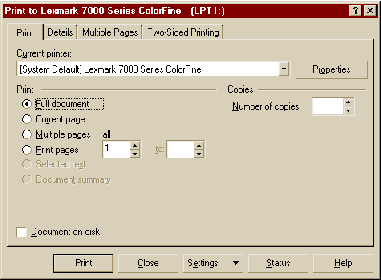
After all the work you have done, it would be nice to see you work on paper. There are a variety of options you can utilize in printing which are discussed following.To print or fax a document, do one of the following.
The Print dialog box will open |
||||||||||||
 |
||||||||||||
Choose Print or tap the Enter key |
The Details page tab
Used to print specific pages, secondary pages,
chapters, or volumes
|
| Used to print a document stored on a hard
disk, floppy disk, or network drive without opening it in the document
window
Steps
Choose Print or tap the Enter key |
A modem and the modem software must be installed
and configured on your system for this operation to work
Click on Dial or tap the Enter key |

|
Have a problem and can't
find the answer on our site?
Click Here To
Contact Us. |
|
Want to know what people say about us? Visit our Comments page. |
|
Let us know what you think about our site or want
to offer any suggestions. |
|
Thanks for visiting |
||
 |
|
 |
|
|
 |
|
|
|
 |
|
|
|
||
|
These links will lead you into our
framed website. It is best viewed at a screen
resolution of 1024 x 768
dpi, however, 800 x 600 dpi will
also work. |
||
 on the Toolbar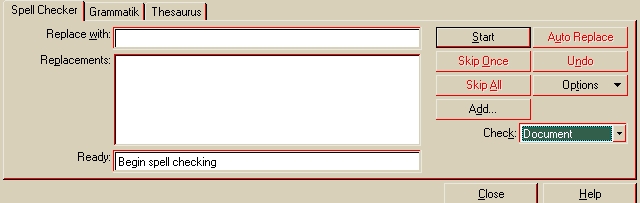
 on the Toolbar



