ER System Works HomeSite MapDrop us a line Fun StuffPC BasicsSearch our library   

ER Computers
Basics
Introduction
Mouse Basics
Computer Terms
Glossary A
Glossary B-C
Glossary D-E
Glossary F-I
Glossary J-K
Glossary L-O
Glossary P-R
Glossary S-U
Glossary V-Z
 
The Keyboard
Key Descriptions
ALT
CTRL
Shift
Home
Page Up
Page Down
 
Actions
Conventions
Shortcuts
Select Text
 
Special Characters
Cdn Keyboard
US Keyboard
Shortcuts
 
Acronyms
File Extensions
Downloads
 
Common Problems
Annoyances
Crashes
Clean Registry
Clean Uninstalls
DLL file Errors
Error Codes
Internet Problems
Malware
Mobile Issues
Print Issues
Slow PC Fixes
Troubleshooting
Software Help
Internet Explorer
Introduction
Toolbar
Navigate
Favorites
Send URL
Printing
 
Excel
Introduction
General
Toolbar
Screen
Keyboard
 
Outlook
Outlook Express
Windows
Accessories
Entertainment
Paint
Word
General
Screen
Toolbars
Ruler
Save
Working with Text
 
WordPerfect


Computer Basics

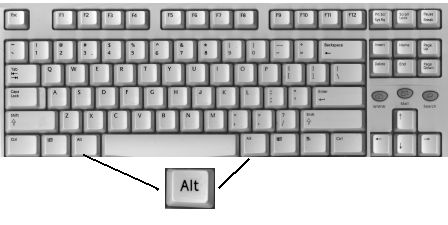
The Alt Key


The  key

The keyboard can be considered an alternate way of working a computer. Although it is the original method of operating a computer, it is, in the 21st century, considered an alternative. It is a more efficient method than using a mouse. 

The ALT key also provides us a way of inserting special characters, such as ½, é, or ¢.  For more about this subject, visit our ASCII character page


To get to the menu bar
  • Hold the  key and tap the underlined letter of the menu option you want to access. 
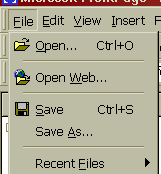
    ie ALT F would open the File drop down list.


  • Once the menu item's drop down list is open, tap ONLY the underlined letter of the task you want to accomplish.  
    ie Taping O would cause the Open dialog box to appear.


  • Once the letter is hit the action will take place, or, a dialog box will open on screen. 
Normal


The File menu open

Should you change your mind you can either, hit the escape key twice (once to close the list and a second time to get back to the body of your work) or point to another part of the screen and single click.

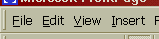
It should also be noted, if you hit the ALT key by itself, your position will be on the menu bar, usually sitting on top of File, without the list being exposed.


Normal state.
This is the menu's normal state.


Active state.
The user has either,
pointed to File and clicked, or has hit ALT F.  
The file menu is exposed under File.


Highlighted state.
The ALT key has been tapped without a corresponding letter.


The  key inside dialog boxes.
As before, Hold <Alt> and tap the underlined letter of the field you want to access. This method is useful as you do not need to select the field's contents prior to making changes. Just type and the contents will be replaced.

Another alternative would be to tap the Tab key. Every hit of the tab key will move your position forward 1 field. Should you overshot your target field, hold Shift and tap Tab. This action will cause your position to move backwards.

  back

Click here for descriptions of all the keys


Have a problem and can't find the answer on our site?   Click Here To Contact Us.  
Due to the awful amount of spam we are receiving -
make sure you remove the EraseMeFirst after the com in the email message

Want to know what people say about us?  Visit our Comments page.

Let us know what you think about our site or want to offer any suggestions. 
Click here to send us feedback
Due to the awful amount of spam we are receiving -
make sure you remove the EraseMeFirst after the com in the email message


Thanks for visiting
 ER  Computer  Services

Home

ER Home Page

Drop us a line

Computer Help

Fun Stuff

Search our site

What we do

Site Map

These links will lead you into our framed website.  It is best viewed at a screen resolution of 1024 x 768 dpi, however, 800 x 600 dpi will also work.  
If your screen cannot handle this, please navigate using our Site Map page and your browser.