|
|
|---|
|
|
|
 ER Computers
 |
||||||||||||||||||||||||||||||||||||
| Basics | ||||||||||||||||||||||||||||||||||||
|
||||||||||||||||||||||||||||||||||||
| Common Problems | ||||||||||||||||||||||||||||||||||||
|
||||||||||||||||||||||||||||||||||||
| Software Help | ||||||||||||||||||||||||||||||||||||
|
|
|
|
|
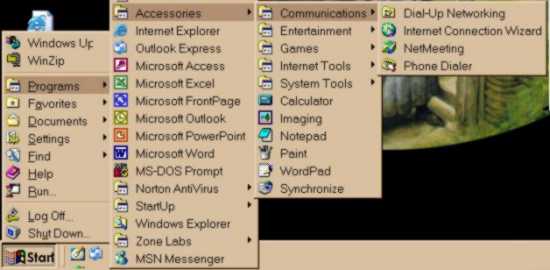
You find the Communications folder
by pointing to and single clicking on the Wait a second or two until the menu opens. Now slide your mouse up to Programs. Again wait, when the menu opens, locate Accessories, then slide your mouse pointer to it. Since we will be discussing the Communications folder, slide your mouse to it. If you would like to know more about each option under this folder, using the diagram above, slide your mouse to the desired subject, then single click. |
| This shortcut will open the Dial Up
Networking folder. You can also get to this folder by double clicking on
the My Computer icon.
To be able to visit the World Wide Web (www) or send/receive email, you must be connected to the internet. If you use a high speed connection, this folder is not used. You will, first, need to signup with a local ISP. Once done, they will provide you will a user name and password. In some cases, they can also have some DNS addresses. |

The Internet Connection Wizard will help you setup your computer to use the Internet. It will ask you questions, which you must provide the answers for. Remember, it is a wizard, not a mind reader. The information you need will be given to you by your provider. It is a one time setup, unless, of course, you change your Internet Provider. |
|
Neetmeeting is a communication program, where people all over the world meet to
chat, share files, work jointly on files, etc.
It is advantage to also have a webcam and microphone to use with this program. With these, you can also have live video to enhance your calls. |
| The Phone Dialer is a way to call people, provided you have a telephone plugged into your modem and your modem is plugged into a phone line. |

|
Have a problem and can't
find the answer on our site?
Click Here To
Contact Us. |
|
Want to know what people say about us? Visit our Comments page. |
|
Let us know what you think about our site or want
to offer any suggestions. |
|
Thanks for visiting |
||
 |
|
 |
|
|
 |
|
|
|
 |
|
|
|
||
|
These links will lead you into our
framed website. It is best viewed at a screen
resolution of 1024 x 768
dpi, however, 800 x 600 dpi will
also work. |
||





 button located on the bottom left of your screen.