|
|
|---|
|
|
|
 ER Computers
 |
||||||||||||||||||||||||||||||||||||
| Basics | ||||||||||||||||||||||||||||||||||||
|
||||||||||||||||||||||||||||||||||||
| Common Problems | ||||||||||||||||||||||||||||||||||||
|
||||||||||||||||||||||||||||||||||||
| Software Help | ||||||||||||||||||||||||||||||||||||
|
|
|
|
|
Tabs are invaluable when it comes to setting up documents properly. If
you want a list to be aligned 1¼" in from the left margin, the LAST
THING you would want to do is use the space bar.
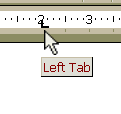
Although you can use the dialog box to set tabs. The easiest way to set them is from the Ruler bar. If it is not visible, turn it on from the View menu. The default settings for tabs are a Left tab set every ½". These tabs are represented by small gray vertical marks shown within the workable area of the document.
|
|
If after you put your tab in your document and discover it is in the wrong spot, you can easily move it. If more than one line of text is involved, choose the area first, otherwise only the line that your mouse is on will be effected by the change. Point to the center of the tab set marker on the ruler bar. It should be noted that if you do not point to the right spot on the marker, you will create another tab just beside the one you wanted to move. |
|
| If you let you mouse pointer sit on the marker for a second, a pop-up description will appear for a few seconds. When you see this signal, you can hold down the left mouse button and drag the marker to the correct sport. |
|
| A vertical dashed line will appear, indicating you are working with the targeted tab. | 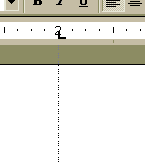 |
|
Point to the center of the tab set marker on the ruler bar. Press the left mouse button and drag the marker down off the bar (a vertical dashed line will appear once you press the left mouse button to indicate you have click at the appropriate time). By the way, you don't have to pull down too far. Just drag the mouse down until the arrow is back at the top of your document. |
|
If you have set several tabs and are finished with them, you can choose to pull down each one individually or you can clear the bunch in one fell swoop. From the Format menu, choose Tabs Presto, all gone. Just like magic. |


|
Have a problem and can't
find the answer on our site?
Click Here To
Contact Us. |
|
Want to know what people say about us? Visit our Comments page. |
|
Let us know what you think about our site or want
to offer any suggestions. |
|
Thanks for visiting |
||
 |
|
 |
|
|
 |
|
|
|
 |
|
|
|
||
|
These links will lead you into our
framed website. It is best viewed at a screen
resolution of 1024 x 768
dpi, however, 800 x 600 dpi will
also work. |
||






 on the tool bar.
Click the left mouse button until the appropriate tab set style.
on the tool bar.
Click the left mouse button until the appropriate tab set style.
 , Right
  , or Decimal