|
|
|---|
|
|
|
 ER Computers
 |
||||||||||||||||||||||||||||||||||||
| Basics | ||||||||||||||||||||||||||||||||||||
|
||||||||||||||||||||||||||||||||||||
| Common Problems | ||||||||||||||||||||||||||||||||||||
|
||||||||||||||||||||||||||||||||||||
| Software Help | ||||||||||||||||||||||||||||||||||||
|
|
|
|
| Knowing how to use the tools in any program is essential to creating marvelous work. This sections deals with the following topics: |
| Use Zoom to specify the size of
on-screen text and graphics. You cannot use Zoom in Two Page view. Unlike
the Print preview, this view adjustment is a working view, notice the cursor
is flashing.
Steps
|
| Used to view the codes that make up your document. (i.e.. bolded words, boxes, etc.). When you edit documents it is advantageous to be able to view the codes that are attached to formatting. |
|
From the View
menu,
choose Reveal Codes
or (Shortcut )Hold <Alt> tap F3 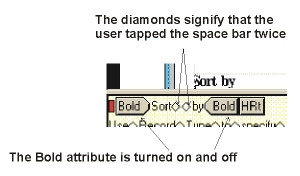
|
Remove text enhancements using Reveal Codes
The red square indicates the cursor in the reveal codes section |
| Show the ruler
The ruler bar is useful for setting tabs and visualizing column and table markers. You can turn the ruler bar on or off, or leave it on permanently by setting the option through the Preference function
or (Shortcut) Alt+Shift tap F3 The ruler will be located just above the work area. |
Access Help commands from the Menu bar
or Begin typing the name of your choice. You will notice the list will go to the area Print Help topics
|

|
Have a problem and can't
find the answer on our site?
Click Here To
Contact Us. |
|
Want to know what people say about us? Visit our Comments page. |
|
Let us know what you think about our site or want
to offer any suggestions. |
|
Thanks for visiting |
||
 |
|
 |
|
|
 |
|
|
|
 |
|
|
|
||
|
These links will lead you into our
framed website. It is best viewed at a screen
resolution of 1024 x 768
dpi, however, 800 x 600 dpi will
also work. |
||





 on the Toolbar.
