|
|
|---|
|
|
|
 ER Computers
 |
||||||||||||||||||||||||||||||||||||
| Basics | ||||||||||||||||||||||||||||||||||||
|
||||||||||||||||||||||||||||||||||||
| Common Problems | ||||||||||||||||||||||||||||||||||||
|
||||||||||||||||||||||||||||||||||||
| Software Help | ||||||||||||||||||||||||||||||||||||
|
|
|
|
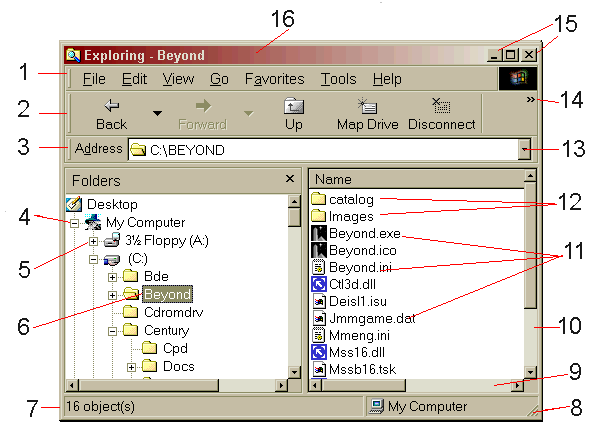
| 1 | Menu Bar |  |
Most programs have a multitude of tools you can utilize. The more powerful a program is the more menu options you have to choose from. |
| 2 | Toolbar |  |
Toolbars allow a user access to the most common tasks, things like opening or closing files, copying and pasting text, etc. They are usually located at the top of a program screen, but can be moved to other locations in a program. |
|
3 |
Address Bar | |
This bar will show your current location. As you move around the Windows Explorer, this bar will help you identify where you are. |
| 4 | Collapse icon | |
The contents of the My computer program are expanded
to show all sub-folders directly below. If you point and click on
the  icon, the list will
disappear from view. icon, the list will
disappear from view. |
| 5 | Expand icon | |
The contents of the collapsed icon are hidden from view.
If you click on the  icon,
the contents of the chosen folder will be revealed directly below it. icon,
the contents of the chosen folder will be revealed directly below it. |
| 6 | Selected Folder | |
Once you have chosen a folder (point to and single click
the left mouse button) the right window will list the contents of the folder.
Folders are similar to a file drawer within a filing cabinet concept.
|
|
7 |
Status Bar - 3 parts | |
|
|
8 |
Sizing Window Marker | |
When your window is in a sized view, you can make it bigger or smaller by pointing to this area of the window. |
|
9
|
Horizontal Scroll Bar |
|
Scroll bar, designed to automatically appear when the width of the information available is greater then the visible area of the screen. (more information) |
| 10 | Vertical Scroll bar |
|
Scroll bar, designed to automatically kick in when the length of information available is greater then the visible area of the screen. |
| 11 | Files |
|
Files are dated and have an individual size, which is dependent on the complexity of the contents. |
| 12 | Folder | |
The classic visual of a folder, notice there is no information listed for size. Should you want to know the byte size of a folder, point to it, right mouse button click, then choose Properties. |
| 13 | Drop Down List | |
Drop down lists are design to keep track of where you have been. If you prefer type in the Address field, the field will start to fill in if there is any history available. |
| 14 | Toolbar Drop down list | |
When a toolbar is too small to show you all the available buttons, this symbol signifies this. When you click on it, a drop down list will open and reveal the other choices. |
| 15 | Minimize button | |
Choosing this button  will remove the current working
program from view and place int on the task bar.
will remove the current working
program from view and place int on the task bar. |
| Maximize/Restore | This button actually has two visuals, Maximize  and Restore
  . The
example provided, shows the button in it's maximize state. If you
want your working program to take up the entire screen, click on this button
and the goal will be accomplished. You can also double click on Title
bar (#16) to maximize or restore. (more
information) . The
example provided, shows the button in it's maximize state. If you
want your working program to take up the entire screen, click on this button
and the goal will be accomplished. You can also double click on Title
bar (#16) to maximize or restore. (more
information) |
||
| Exit button | When you are finished with a program it should be exited. All window's based programming uses this design for exiting. (more information) | ||
| 16 | Title bar | |
All programs have title bars which just identify the program and shows you the name of the file you are working on. |

|
Have a problem and can't
find the answer on our site?
Click Here To
Contact Us. |
|
Want to know what people say about us? Visit our Comments page. |
|
Let us know what you think about our site or want
to offer any suggestions. |
|
Thanks for visiting |
||
 |
|
 |
|
|
 |
|
|
|
 |
|
|
|
||
|
These links will lead you into our
framed website. It is best viewed at a screen
resolution of 1024 x 768
dpi, however, 800 x 600 dpi will
also work. |
||